How to Make Your iPhone, MacBook, and iPad Work Together Seamlessly
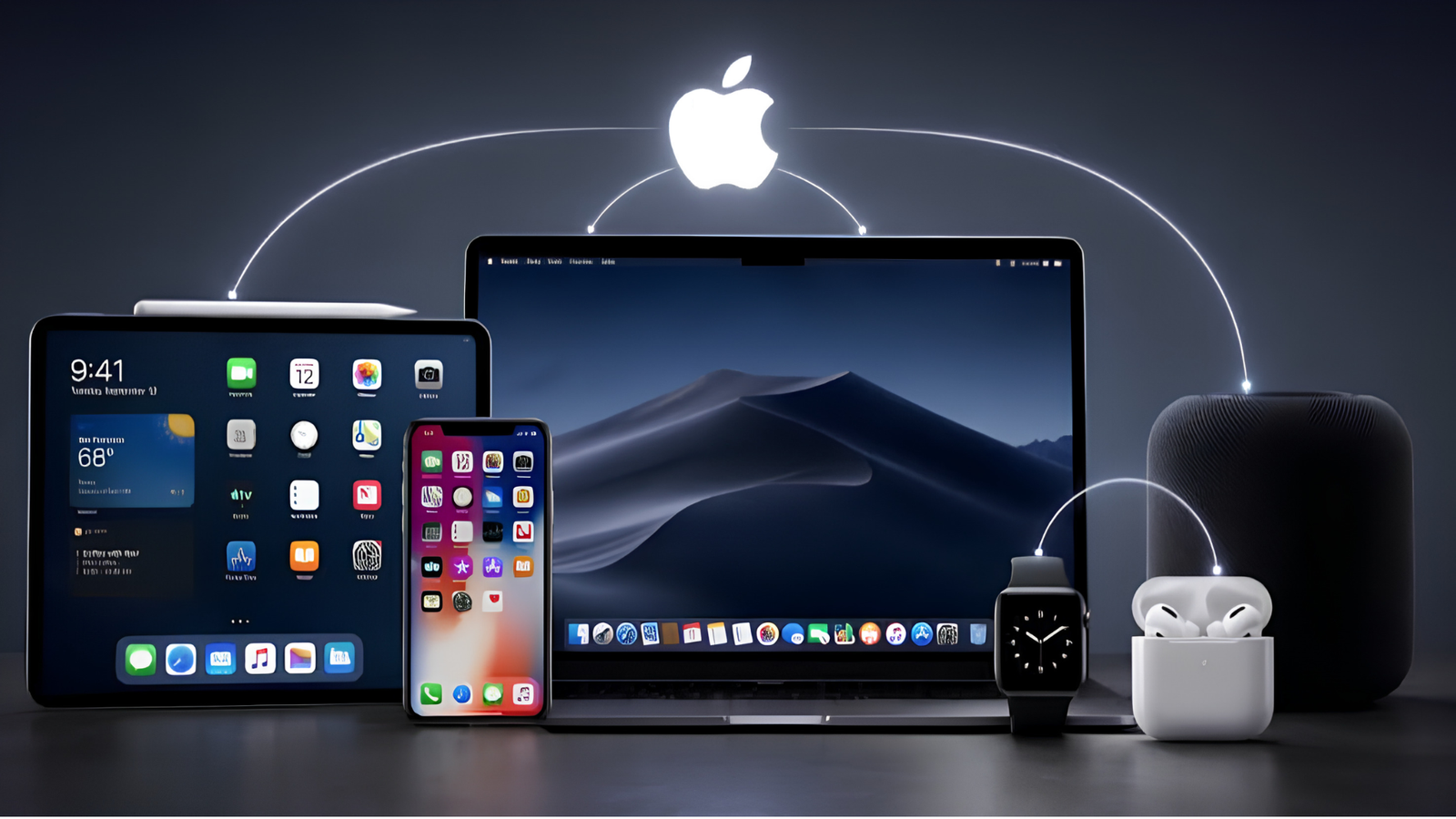
Owning an iPhone, a MacBook and an iPad can feel like having three separate computers that happen to share a logo. Or it can feel like having one connected system, where you start an email on your phone, finish it on your laptop, drag a photo from one screen to another, and answer a phone call without taking your phone out of your bag. The difference is not the hardware. It is whether you have set up and learned the features that Apple built to make its devices cooperate.
Apple calls many of these features Continuity, and they sit alongside iCloud, AirDrop and a handful of other tools. Most of them are free, built into the software and switched on with a few taps. The problem is that many people never find them, or they stopped working years ago because of one forgotten setting and nobody noticed.
This guide walks through how to get your iPhone, MacBook and iPad working together properly. You will learn the basic setup that everything depends on, the features worth using every day, the more advanced tricks that save real time, and what to do when something stops working. Feature names, menus and device support change with each software update, so if a setting looks slightly different on your device, search the Settings or System Settings app for the feature name.
Start With the Foundation
Almost every feature in this article depends on a few basic conditions. If something is not working, check these first, because they solve most problems.
Use the same Apple Account on every device. Your Apple Account, formerly called Apple ID, is what tells your devices they belong together. Sign in to the same account on your iPhone, iPad and Mac. You can check this in Settings on iPhone and iPad, and in System Settings on the Mac, where your name appears at the top.
Turn on Wi-Fi and Bluetooth. Many features use Bluetooth to detect that your devices are close together and Wi-Fi to transfer data. Your devices do not always need to be on the same Wi-Fi network, but being on the same network helps with some features, and both radios should be on.
Keep your software updated. Continuity features need reasonably recent versions of iOS, iPadOS and macOS. Newer features often require the newest releases and newer hardware. Check Settings, then General, then Software Update on iPhone and iPad, and System Settings, then General, then Software Update on the Mac.
Enable two-factor authentication. This is required for many iCloud features and is a good security practice anyway.
Check device compatibility. Older devices may not support everything. If a feature is missing, look up the minimum requirements on Apple’s support site for the exact feature.
Be signed in to iCloud. Settings, then your name, then iCloud lets you control what syncs. We will return to this shortly.
iCloud: The Invisible Glue
iCloud is the service that keeps your data in sync across your devices. When it is set up properly, you do not have to think about it, which is the whole point.
What you can sync
On each device, go to your Apple Account settings, then iCloud, and look at the list of apps and features that use iCloud. The most useful ones to switch on are:
- Photos: Your pictures and videos appear on all devices, and edits sync too. A photo you take on your iPhone shows up on your iPad and Mac without any manual transfer.
- iCloud Drive: Files you save to iCloud Drive appear in the Files app on iPhone and iPad and in Finder on the Mac. You can also sync your Mac’s Desktop and Documents folders if you want your work files available everywhere.
- Passwords and Keychain: Your saved passwords, passkeys and verification codes are available on all your devices and autofill in Safari and many apps.
- Notes, Reminders, Calendar and Contacts: These sync automatically and are the foundation of a connected workflow.
- Safari: Bookmarks, Reading List, open tabs and tab groups sync across devices.
- Messages in iCloud: Your message history stays consistent across devices, and deleting a message on one device removes it on others.
- Health, Wallet and Home: Depending on your use, these keep data consistent between your iPhone and other devices.
Watch your storage
iCloud includes a limited amount of free storage, and it fills up quickly when Photos and device backups are involved. If you reach the limit, syncing may stop working properly. Check how much you are using in Settings under your name, then iCloud. If you need more, Apple offers paid iCloud+ plans, or you can reduce usage by deleting old backups and large files.
Optimize Mac storage
On the Mac, you can choose to keep full-resolution originals or optimized versions of photos and files locally, with the full versions stored in iCloud. If your MacBook has limited storage, optimization can free up significant space, though it means some files need to download before you can open them.
Handoff: Pick Up Where You Left Off
Handoff lets you start something on one device and continue on another. You might begin writing an email on your iPhone and then finish it on your MacBook, or open a web page on your Mac and continue reading on your iPad.
How to turn it on
- iPhone and iPad: Settings, then General, then AirPlay and Continuity (or Handoff), then turn on Handoff.
- Mac: System Settings, then General, then AirDrop and Handoff, and turn on the option to allow Handoff between this Mac and your iCloud devices.
How to use it
When Handoff is available, a small icon for the app appears in the Dock on your Mac, usually at the left end, or in the app switcher on your iPad or iPhone. Click or tap it, and the document or page opens where you left off. It works with Safari, Mail, Notes, Maps, Pages, Numbers, Keynote, Messages, Reminders, Calendar, Contacts and many third-party apps that support it.
Handoff depends on your devices being close to each other, because it uses Bluetooth to detect proximity. It also needs the devices to be on the same Apple Account.
Universal Clipboard: Copy Here, Paste There
This feature feels a little like magic the first time you use it. You can copy text, an image, a photo or a file on one Apple device and paste it on another.
For example, copy a paragraph from a web page on your iPhone, then switch to your Mac and press Command and V to paste it. Or copy a screenshot on your iPad and paste it into a document on your MacBook.
Universal Clipboard is part of Handoff, so if Handoff is switched on, it should work. The content remains available for a short time, and only the most recent item you copied is available. Large files can take a moment to transfer. If paste does nothing, check that Wi-Fi, Bluetooth and Handoff are enabled, and that your devices are signed in to the same account and are reasonably near to each other.
AirDrop: Fast File Sharing
AirDrop lets you send photos, documents, links, contacts and more between Apple devices wirelessly. It is useful for sending a large video from your iPhone to your Mac, or sharing a PDF from your iPad to a friend’s phone.
Using AirDrop
On iPhone or iPad, tap the Share button in any app, choose AirDrop, and pick the nearby device. On the Mac, you can use the AirDrop item in the Finder sidebar, or right-click a file and choose Share, then AirDrop.
Visibility settings
AirDrop has a visibility setting that determines who can see your device. The options usually include Receiving Off, Contacts Only and Everyone for 10 Minutes. For your own devices, you do not need to change these to AirDrop between them if they are signed in to the same account, but Contacts Only is a safe default if you share with other people. Avoid leaving it open to everyone at all times, especially in public places.
If AirDrop does not work
Make sure Wi-Fi and Bluetooth are on, that the devices are near each other, and that neither device has a restriction or Personal Hotspot interfering. On a Mac, check that the firewall is not set to block all incoming connections. Restarting both devices often resolves odd problems.
Continuity Camera: Use Your iPhone as a Scanner, Webcam or Photo Source
Your iPhone has a far better camera than the one built into most laptops, and Continuity Camera lets your Mac take advantage of that.
Insert photos and scans
In apps such as Pages, Notes, Mail and TextEdit, you can right-click or use the Insert menu on your Mac and choose to import from your iPhone. Choose Take Photo or Scan Documents, and your iPhone camera opens. Take the picture or scan, and it appears instantly in your Mac document. This is a fast way to digitize paperwork or insert a photo of a whiteboard without any cables or emailing yourself.
Use your iPhone as a webcam
On recent versions of macOS, your iPhone can act as a high-quality webcam for video calls. Mount it near your Mac screen using a stand or clip, and it appears as a camera option in apps such as FaceTime, Zoom and Teams. Many people do this wirelessly, and it works automatically in many cases when the iPhone is near your Mac and the Mac is signed in to the same account. Features such as Center Stage, Portrait mode, Studio Light and Desk View can improve how you look on camera.
If your Mac does not detect the iPhone as a camera, check that the iPhone is locked, stable and close to the Mac, and that Continuity Camera is enabled in your iPhone’s settings.
iPhone Mirroring on the Mac
On supported versions of macOS and iOS, you can display and control your iPhone from your Mac. The iPhone stays locked and nearby, while its screen appears in a window on your Mac. You can open apps, reply to messages, use your phone’s apps with your keyboard and mouse, and even drag and drop files between the phone window and your Mac.
This is helpful when you are working at your desk and want to check a message or use an app that only exists on the phone, without picking it up and getting distracted. Notifications from your iPhone can also appear on your Mac.
There are limits. It requires compatible software and hardware, both devices must be signed in to the same account with two-factor authentication, and the iPhone needs to be locked and near the Mac. Availability has varied by country, and some features, such as certain camera or Face ID functions, do not work in the mirrored window. Check Apple’s support page for what your region and devices support.
Sidecar: Turn Your iPad Into a Second Display
If you have an iPad and a Mac, you can use the iPad as an extra screen. This feature is called Sidecar, and it is a very effective way to expand your workspace when you are traveling or working in a small space.
How to set it up
On the Mac, open System Settings, then Displays, and choose your iPad from the list of available displays to add. In many versions of macOS you can also use the Screen Mirroring option in Control Center. You can extend your desktop to the iPad, or mirror your Mac screen on it. You can connect wirelessly or with a USB cable, and a cable also charges the iPad and tends to be more stable.
Using the Apple Pencil
With Sidecar, an Apple Pencil can work as a drawing and annotation tool on your Mac. Designers and illustrators often use it to draw in apps such as Photoshop, Illustrator and Affinity, and to mark up documents. The iPad also shows an optional sidebar and a Touch Bar-style strip with shortcuts for undo, copy and other commands.
Universal Control: One Keyboard and Mouse for Mac and iPad
Universal Control is different from Sidecar. Instead of making the iPad a display of your Mac, it lets you use a single keyboard and mouse or trackpad to control both devices, each showing its own screen and apps.
Place your Mac and iPad next to each other, and move your cursor to the edge of the Mac screen. It will glide over onto the iPad, as if the two were one big workspace. You can type on the iPad using your Mac’s keyboard, and you can even drag files and content between devices. For example, you can drag a photo from your iPad’s Photos app into a document on your Mac.
To set it up, go to System Settings on your Mac, then Displays, and look for the Advanced options to enable the cursor and keyboard to move between nearby devices. On the iPad, go to Settings, General, AirPlay and Continuity, and turn on Cursor and Keyboard. Your devices need to be signed in to the same Apple Account, be near each other, and have Bluetooth, Wi-Fi and Handoff on.
Calls and Messages Everywhere
You do not need to reach for your iPhone every time it rings or buzzes.
Phone calls on Mac and iPad
With iPhone Cellular Calls enabled, you can make and receive regular phone calls on your Mac and iPad, using your iPhone’s cellular connection. On the iPhone, go to Settings, then Apps, then Phone, then Calls on Other Devices, and choose which devices can place and receive calls. Make sure your devices are on the same account and the Mac and iPad have FaceTime signed in. When the phone rings, a notification appears on your Mac or iPad, and you can answer from there.
Text messages
To receive SMS and MMS text messages, not just iMessages, on other devices, enable Text Message Forwarding in your iPhone’s Messages settings, and choose the devices you want. After that, messages from Android users and non-iMessage contacts appear on your Mac and iPad as well. You can also use Messages in iCloud to keep your whole conversation history synchronized.
FaceTime across devices
FaceTime calls ring on all your signed-in devices. You can answer on whichever is most convenient, and you can move a call from one device to another when needed.
Instant Hotspot
If you are out and about with your MacBook and there is no Wi-Fi, you can use your iPhone’s cellular connection without fiddling with a password. Click the Wi-Fi icon on your Mac, and your iPhone should be listed under Personal Hotspot. Click it, and the connection starts automatically, even if the phone is in your bag. This requires a cellular plan that allows tethering, and it uses your mobile data, so be aware of limits.
Unlock and Authenticate Faster
A few features reduce the friction of passwords and logging in.
Unlock with Apple Watch. If you own an Apple Watch, you can set it to unlock your Mac automatically when you are nearby and wearing it. You can also approve certain requests, such as installing software or viewing passwords, with a double press on the watch’s side button.
Touch ID on Mac. Many MacBooks have a fingerprint sensor you can use for unlocking, Apple Pay and approving purchases.
iCloud Keychain and Passkeys. Passwords and passkeys sync across devices, so you can sign in on your Mac using your iPhone’s Face ID, and autofill logins on every device.
Verification codes. Two-factor authentication codes sent to your trusted devices can often autofill on the device you are using.
Apple Pay and Wallet
You can use Apple Pay on your Mac and iPad when shopping online. If your Mac has Touch ID, you can authorize with your fingerprint. If not, you can authorize with your iPhone or Apple Watch. Wallet items such as boarding passes and tickets live on your iPhone, but can also be viewed on other devices in some cases.
Notes, Reminders and Calendar as a Shared Brain
Built-in apps are some of the best examples of seamless syncing. A note you write on your iPad with the Apple Pencil is available on your Mac within seconds. A reminder you create on your Mac pops up on your iPhone at the right time or location. A calendar event you add anywhere appears everywhere.
These apps also support sharing and collaboration. You can share a note or a reminder list with a partner or colleague, and everyone sees updates in real time. In Notes, you can scan documents, add sketches, create checklists and tag items. Using these tools consistently turns your devices into a single productivity system.
Tips for making them work better
- Make sure the apps are enabled under iCloud settings on every device, and that you are not accidentally saving notes to an On My Device account that does not sync.
- Use Focus modes and shared Focus status so notifications are filtered consistently across devices.
- Choose a default calendar and a default reminder list to avoid items going to the wrong account.
Safari: Tabs, Tab Groups and Reading List
If you do a lot of browsing, Safari’s sync can save time. Open tabs on one device appear in a list on your other devices, so you can continue research on your Mac that you started on your phone. Tab Groups let you organize tabs by project, and these groups sync, too. The Reading List stores articles for later across devices.
If you prefer Chrome or another browser, you can still sync using that browser’s own account, but you may lose some Apple-specific features such as Handoff for web pages in certain cases.
Photos and Media
Photos is one of the most visible examples of Apple devices working together. Turn on iCloud Photos, and everything you shoot appears everywhere. Albums, favorites, edits and memories are all kept in sync. Shared Albums and the iCloud Shared Photo Library make it easy to collect pictures with family and friends.
For music and video, subscriptions through Apple Music or Apple TV sync libraries and playlists. AirPlay lets you send audio and video from any of your devices to speakers, smart TVs and, on recent versions, to your Mac. AirPods can also switch automatically between your devices, so music playing on your iPad moves to your iPhone when you take a call.
Find My and Family Features
The Find My app lets you locate any of your Apple devices, including ones that are offline, and play a sound, lock them or erase them if lost. It is worth confirming that Find My is turned on for all three devices. Family Sharing lets you share purchases, subscriptions and iCloud storage with other family members, and it can also help you manage children’s devices with Screen Time.
Productivity Tricks Worth Learning
Once the basics are working, a few extras can make a real difference.
- Continuity Markup and Sketch. Annotate a PDF or image on your Mac using your iPhone or iPad, and the result appears in your document.
- Drag and drop between devices. With Universal Control, you can move files, images and text between the Mac and iPad directly.
- Shared Clipboard for quick transfers. Instead of emailing yourself a link, copy it on one device and paste on another.
- Screenshots to Markup. On iPhone and iPad, take a screenshot and mark it up immediately, then send it to your Mac with AirDrop.
- Focus modes. Set up a Work Focus that follows you across devices, silencing distractions everywhere at once.
- Shortcuts app. Build automations that run on your iPhone, iPad and Mac, for example resizing images, sending daily summaries or starting a routine.
- Quick Note. On iPad and Mac, you can quickly jot down ideas without opening the Notes app, and they sync to every device.
Security and Privacy Considerations
A connected ecosystem is convenient, but it also means one account protects everything. Take security seriously.
- Use a strong, unique password for your Apple Account and enable two-factor authentication.
- Keep your trusted phone number and recovery contacts up to date.
- Turn on passcodes and biometric locks on all devices.
- Be careful with AirDrop and Bluetooth visibility in public spaces.
- Review the list of devices signed in to your Apple Account regularly, and remove any you no longer use.
- Consider setting up a Recovery Contact or Legacy Contact so you can regain access if something goes wrong.
Troubleshooting: When Things Stop Working
Even well-designed systems have problems. If a Continuity feature stops working, try these steps in order.
- Check the basics. Confirm that Wi-Fi and Bluetooth are on and that you are signed in to the same Apple Account on all devices.
- Restart the devices. A simple restart resolves a surprising number of problems.
- Toggle the feature. Turn Handoff, AirDrop or the relevant feature off and on again on each device.
- Sign out and back in. Signing out of iCloud and back in can fix syncing problems. Make sure your data is backed up first.
- Update the software. Install any available updates on all three devices.
- Check network settings. VPNs, firewalls, restrictive router settings or public Wi-Fi networks can interfere with local device communication.
- Reset network settings. On your iPhone or iPad, this can clear lingering connection problems, but you will need to re-enter Wi-Fi passwords.
- Check Apple’s system status page. Occasionally the problem is on Apple’s end, particularly for iCloud services.
- Contact Apple Support. If nothing works, they can run deeper diagnostics.
What If You Also Use Non-Apple Devices?
Many people have an iPhone and a Windows PC, or an Android tablet alongside a Mac. Apple’s most magical features require Apple devices, but some tools work across platforms. iCloud has a Windows app that syncs photos, passwords and files. Cloud services such as Google Drive, Dropbox and Microsoft OneDrive work on nearly everything, and messaging and note apps from third parties often have cross-platform versions. You can build a good mixed setup, but if seamless integration is your priority, sticking with Apple for your main devices makes the experience smoother.
Frequently Asked Questions
Do I need to pay for any of these features? Most of them are free and built into the software. You may need paid iCloud storage if you run out of the free allowance.
Do all my devices have to be on the same Wi-Fi network? Not always, but many features work best when they are. Bluetooth and Wi-Fi should be on for all of them.
Does Handoff work with third-party apps? Yes, if the developer has added support. Many popular apps do.
Can I use more than one Mac with these features? Yes. Features such as Handoff, Universal Clipboard and AirDrop work with multiple devices on the same account.
Why does Universal Control not connect? Check that both devices support it, that you are signed in to the same account, that Handoff, Bluetooth and Wi-Fi are on, and that the devices are close together. Also confirm that the Mac is not connected to another display setting that interferes.
Is iPhone Mirroring available everywhere? Availability has depended on region and software version, so check Apple’s support page for your country.
Will it drain my battery? Continuity features use Bluetooth and Wi-Fi in the background, but the impact is typically small. If you notice a problem, you can turn off features you do not use.
Final Thoughts
Getting your iPhone, MacBook and iPad to work together is mostly a matter of setup and awareness. Start with the foundation: the same Apple Account, Wi-Fi, Bluetooth, up-to-date software and the right iCloud settings. Then add the features that match how you actually work. If you write on several devices, Handoff and Universal Clipboard will save time. If you work at a desk, Continuity Camera, iPhone Mirroring and Universal Control are valuable. If you travel, Sidecar and Instant Hotspot are hard to beat.
You do not need to use every feature. Pick two or three that solve a real annoyance in your day, set them up properly, and build the habit. Over time, you will notice how little friction there is between your devices, and how much more natural it feels to move between them. That is the real value of the Apple ecosystem: not any single feature, but the feeling that your devices are working as a team.