iPad as a Laptop Replacement: Is It Really Possible?
For more than a decade, Apple has been teasing the same idea: one day, your iPad could be all the computer you need. Commercials show people typing on a Magic Keyboard in a cafe, sketching with an Apple Pencil on a train, and editing video on a beach. It looks like freedom. Then you try to actually do your job on one, hit a wall at the worst possible moment, and quietly reach for your old laptop.
So, in 2026, is it finally possible to leave the laptop behind?
The honest answer is yes, for a lot more people than before, and no, for a few people who will be frustrated if they try. The iPad has never been more capable. The latest iPad Pro is powered by the M5 chip, the same family of chip that runs Apple’s laptops, and iPadOS has finally grown real windowing and menu bar features that make it feel more like a computer. But the software still has limits, and the price of a well-equipped iPad is no longer cheap.
In this guide, we look at what the iPad can truly replace, what it still cannot, how much it really costs once you add a keyboard, and who should (and should not) make the switch. By the end, you will know whether an iPad can be your only computer, or whether it should stay your very good second one.
A note on prices: Apple raised prices on several products this year because of higher component costs, so the figures below are approximate and may change. Always confirm current prices at Apple or your retailer before buying.
The Short Answer
If you want the quick verdict, here it is.
An iPad can replace your laptop if your work happens mostly in a web browser, documents, email, messaging, video calls, note-taking, reading, light photo or video editing, design with an Apple Pencil, or apps that have good iPad versions.
An iPad cannot fully replace your laptop if you need desktop-only software, a full programming environment, heavy multi-window workflows, complex file management, virtual machines, specialized business tools, or a computer shared between multiple people.
The real question is not whether the hardware is powerful enough. It is. The question is whether the software you depend on works the way you need it to.
Why This Question Is Different in 2026
People have asked this question since the first iPad Pro, and the answer used to be a flat “no.” Several changes have made it more interesting now.
The hardware is no longer the limit
The M5 iPad Pro is extremely fast. In many reviews it outperforms a MacBook Air in raw power, and it is thinner and lighter than almost any laptop. It has a tandem OLED display, Face ID, fast Wi-Fi 7, optional 5G cellular, and Thunderbolt/USB 4 connectivity. If speed were the only issue, the debate would be over.
iPadOS finally acts more like a computer
The biggest shift came with iPadOS 26, which introduced a new windowing system. You can now freely resize, move, and overlap windows instead of being locked into split views or the older Stage Manager arrangement. A menu bar, which you reveal by swiping down from the top of the screen, gives you the familiar File, Edit, and View menus that desktop users expect. Background tasks, a better Files app, and improved audio and recording controls also moved the iPad closer to a real computer.
Apple’s latest software update, iPadOS 27, continues that direction. Because Apple adjusts details with each release, check which new features your iPad supports before you decide.
The accessories are better
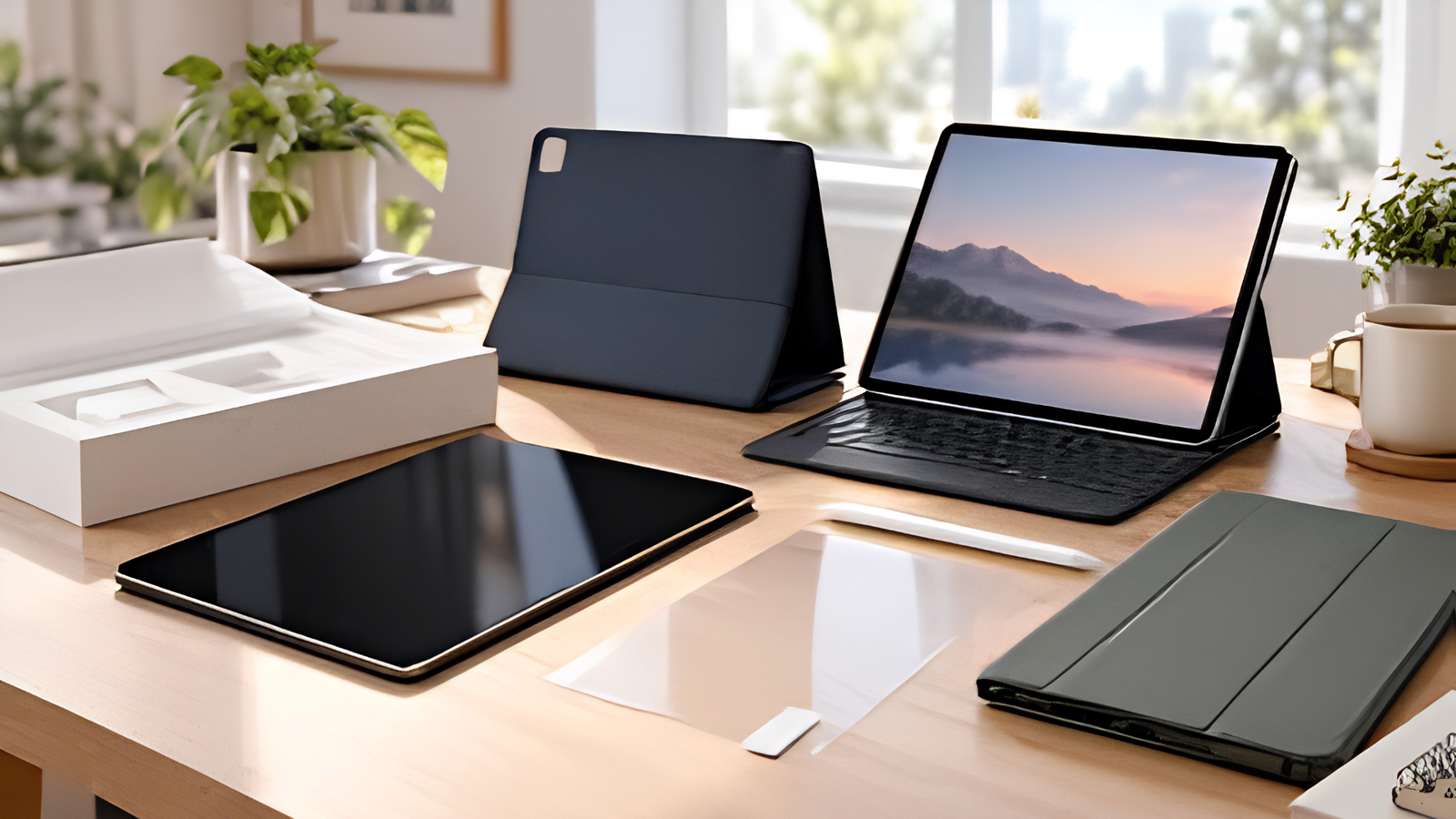
The Magic Keyboard for iPad Pro now has a function row, a larger glass trackpad, an aluminum body, and an extra USB-C port. Typing on it feels very close to a real laptop. With the keyboard attached, an iPad looks and behaves like a notebook, and the screen floats above the keys.
So, yes, the gap has narrowed. But it has not vanished, and the details are where the real decision lives.
Which iPad Are We Talking About?
Not every iPad is a candidate. The three most relevant options are:
- iPad Pro (11-inch and 13-inch, M5). The most capable and the most laptop-like. The 11-inch has started at about $999 and the 13-inch at about $1,299, though prices have gone up in some places.
- iPad Air. A strong middle option with a laptop-class chip, a great screen, and support for the Magic Keyboard and Apple Pencil, at a lower price than the Pro.
- Standard iPad. Excellent for students and families, but its smaller feature set and less powerful chip make it a lighter laptop alternative.
If you are serious about replacing a laptop for work, the Air and the Pro are the realistic choices. The standard iPad suits simpler needs such as browsing, school work, and entertainment.
The Real Cost: Add the Keyboard
Here is the part that surprises many buyers. The iPad’s sticker price does not include the one accessory that makes it a laptop.
A typical laptop-style setup includes:
- The iPad itself. The 13-inch iPad Pro starts at about $1,299.
- A Magic Keyboard. About $299 for the 11-inch and $329 for the 13-inch.
- An Apple Pencil Pro (optional). Often $129 or more, if you draw, take handwritten notes, or mark up documents.
- Storage and cellular upgrades (optional). These add up quickly.
So a 13-inch iPad Pro with a Magic Keyboard lands at around $1,600 before tax, and closer to $1,750 or more with a Pencil. At that point, you are paying about the same as a MacBook Air, which now starts at around $1,299 for the 13-inch model, or even approaching a base MacBook Pro.
It gets sharper at the low end. Apple’s budget MacBook Neo has started at about $699, which is less than many iPads once a keyboard is added. If your only goal is a cheap, laptop-style device for typing and browsing, a Mac may be the better value.
This does not mean the iPad is a bad deal. You are paying for a unique device: one that is a tablet, a drawing board, a media screen, an e-reader, and a laptop all at once. But if all you want is a laptop, the iPad is rarely the cheapest way to get one.
Money-saving tips:
- Consider the iPad Air with a more affordable keyboard if you do not need Pro-level performance.
- Look for discounts on the Magic Keyboard, which drop noticeably on sale, especially around Black Friday.
- Check third-party keyboards from reputable brands if the price of Apple’s is too high, though they usually feel less premium.
- Buy education pricing if you are a student or teacher.
Where the iPad Really Shines
Let’s start with the good news. There are areas where the iPad genuinely beats a laptop.
Portability
An iPad Pro is remarkably thin and light. The 11-inch model weighs roughly a pound by itself, and even with a keyboard attached the combination is typically lighter than most laptops. If you travel or commute, this matters every day.
Better still, you can remove the keyboard and hold the screen like a tablet to read, watch, or sketch. A laptop cannot do that.
The display
The iPad Pro’s tandem OLED panel is among the best screens Apple has ever made, with deep blacks, bright HDR, and a smooth 120Hz refresh rate. Even the iPad Air has a very good display. For watching video, reading, editing photos, or reviewing designs, it is a pleasure to use.
Touch and Apple Pencil
If your work involves drawing, handwriting, marking up PDFs, signing documents, or sketching ideas, the iPad is in a class of its own. Apps like Procreate, Notability, GoodNotes, and Concepts are built around the Pencil, and no laptop matches the experience. Teachers marking papers and designers sketching concepts often find the iPad indispensable.
Battery life and instant-on convenience
The iPad wakes instantly, runs cool, and typically lasts a full day of ordinary use. Apple rates it for around 10 hours of web browsing or video, and real-world results are strong. With optional 5G cellular, you can also work from anywhere without hunting for Wi-Fi.
Cameras and video calls
The iPad’s front camera is positioned along the long edge, so you look at the person you are talking to even when the iPad is in landscape orientation with a keyboard. Video calls look natural, and Center Stage keeps you framed.
Creative work
For illustration, photo editing, music production, and video editing, the iPad has excellent apps such as Procreate, Affinity, Adobe Fresco, Lightroom, LumaFusion, Final Cut Pro for iPad, and GarageBand. Many creatives find the iPad faster and more enjoyable than a laptop for these tasks.
Where the iPad Still Struggles
Now for the honest part. These are the areas that most often push people back to a laptop.
Software limits
The biggest barrier is the software. iPad apps are often simplified versions of their desktop cousins. Some are excellent, such as Microsoft Office, Google Workspace, Notion, Figma’s viewing tools, and Final Cut Pro. Others are missing features you rely on.
Before you switch, check that every tool you use daily has an iPad version, and that the iPad version does what you need. Pay special attention to:
- Specialized business, accounting, or industry software
- Advanced spreadsheet features, macros, and add-ins
- Complex Adobe workflows (Photoshop and Illustrator on iPad are good, but not identical to the desktop versions)
- Engineering, CAD, and scientific software
- Some corporate tools that run only on Windows or Mac
If a critical app is missing, a web version may work in Safari, but not always smoothly.
Programming and development
This is the iPad’s most famous weakness. You cannot run a full, local development environment the way you can on a Mac or PC. There is no Terminal in the traditional sense, no native Docker, and no full version of Xcode for building iPhone apps.
You can still write code on an iPad using cloud-based tools like GitHub Codespaces, remote servers, or apps such as Swift Playgrounds. Many developers connect to a remote machine and use the iPad as a screen and keyboard. That works well for some, but it is a real change in workflow, and it is not for everyone. If you build software for a living, a Mac is the safer choice.
Multitasking and window management
The new windowing system is a huge improvement, but it is still not a full desktop. Juggling a dozen windows across several virtual desktops, using powerful window managers, or running complex multi-monitor layouts can feel clunkier than on a Mac. It is good, but it is not the same as decades of desktop refinement.
External displays work, and you can connect a monitor, keyboard, and mouse for a desk setup. However, how the iPad uses a second screen is more limited than on a Mac, so test it before you rely on it.
File management and external storage
The Files app has improved, but it is still not as flexible as Finder or Windows Explorer. Everyday jobs such as managing folders, using external drives, and sharing files work well. Complex jobs such as batch-renaming hundreds of files, running scripts on folders, or managing large archives are more awkward.
One user, one profile
A laptop can have multiple user accounts. An iPad does not. If the device is shared between family members or coworkers, each person sharing the same login can be a problem. For a personal device, this does not matter.
Browser and web quirks
Safari on iPad now requests the desktop version of websites by default, which solves many old problems. Still, a few web apps, particularly older business portals and certain video-conferencing or design tools, may not behave perfectly.
Repairs, upgrades, and longevity
Like all modern Apple devices, an iPad’s memory and storage cannot be upgraded later. Buy enough storage up front.
What About the MacBook Alternative?
It helps to compare the iPad directly with a MacBook, because that is the choice many people really face.
| iPad Pro with Magic Keyboard | MacBook Air | |
|---|---|---|
| Starting price (approx.) | about $1,600 for 13-inch with keyboard | about $1,299 for 13-inch |
| Touchscreen and Pencil | Yes | No |
| Full desktop software | No | Yes |
| Development tools | Limited | Full |
| Weight | Very light, extra with keyboard | Light |
| Detachable tablet | Yes | No |
| Window management | Improving | Mature |
| File management | Basic to good | Excellent |
In plain English: the MacBook is the better pure laptop, and the iPad is the more versatile device. If you will use touch, drawing, and tablet mode often, the iPad earns its price. If you will not, the MacBook gives you more computer for the money.
Who Can Replace Their Laptop With an iPad?
Here are the people for whom the switch usually works well.
Students
For note-taking, reading, research, writing papers, and studying, an iPad is outstanding. Handwritten notes, digitized textbooks, and flashcards all work beautifully. Students in humanities, business, design, and medicine often thrive on an iPad. Students in computer science or engineering may want a laptop alongside it.
Writers, bloggers, and office workers
If your day is email, documents, spreadsheets, calls, and web apps, an iPad with a keyboard is entirely capable. Many professionals find the lightness and focus of the iPad a bonus.
Artists and designers
Illustrators, concept artists, and many graphic designers do some of their best work on an iPad, using the Pencil. If your tools have iPad versions, it can be your main machine.
Teachers and trainers
Marking up student work, presenting, handwriting on slides, and moving around the classroom are all easier on an iPad.
Frequent travelers and field workers
The weight, battery life, optional cellular, and instant wake make the iPad ideal on the road. Real-estate agents, photographers, consultants, and medical professionals often prefer it for daily mobile work.
Casual home users
If you browse, shop, stream, video chat, and manage photos, an iPad can cover nearly everything.
Who Should Keep a Laptop?
Be honest with yourself if you fall into one of these groups.
- Software developers who need full local tools, compilers, and containers.
- Video editors and 3D artists on large projects, who may find the desktop apps deeper and faster for complex work.
- Finance and data professionals who rely on advanced Excel features, macros, or specialized software.
- Engineers and architects using CAD or simulation tools.
- IT administrators who need terminals, remote management tools, and system access.
- Anyone whose employer requires a specific Windows or Mac application.
- Shared-computer households where multiple user profiles are needed.
If you are in this group, an iPad can still be a superb companion, just not the only device.
A Smarter Way to Decide: The 30-Day Test
Before you spend money, try this simple experiment.
- List your tools. Write down every app, website, and file type you use in a normal week.
- Check each one. Confirm there is an iPad app or a good web version, and that it has the features you need.
- Borrow or try an iPad. Use a friend’s iPad with a keyboard, or visit an Apple Store and test your real workflow.
- Do a trial week. Work only on the iPad (or an older one) and note every time you feel stuck.
- Count the blockers. If you have zero or one, you are probably fine. If you have several, keep your laptop.
Apple’s return policy gives you time to test a purchase, which makes this experiment low-risk. Buy from a store with a generous return window and treat the first two weeks as a trial.
Tips for Making an iPad Work as a Laptop
If you decide to try it, these tips will make the switch smoother.
- Learn the keyboard shortcuts. Hold the Command key in many apps to see a list. They are similar to Mac shortcuts and speed up everything.
- Use the new windowing features. Open several apps at once, resize them, and arrange them to match your task.
- Set up an external display for a desk workflow, if your iPad supports it, and pair it with a mouse.
- Use cloud storage and sync. iCloud, Google Drive, Dropbox, and OneDrive all work well and keep your files available everywhere.
- Get enough storage. Go for at least 256GB, and more if you edit video or store large files.
- Use a good case or stand that supports multiple angles, so you can type comfortably on a table, on a sofa, or on a plane.
- Pair it with a good mouse or trackpad at a desk if you do precise work.
- Learn Shortcuts and automation. The Shortcuts app can automate repetitive tasks and make up for some missing power-user features.
- Keep remote access handy. For occasional tasks that need a full computer, remote desktop apps let you connect to a Mac or PC from your iPad.
Frequently Asked Questions
Can an iPad run Windows or macOS?
No. An iPad runs iPadOS only. You can access a Windows or Mac computer remotely using remote desktop apps, but you cannot install those systems on the iPad itself.
Is the iPad Air enough, or do I need the Pro?
For most laptop-style uses such as writing, browsing, studying, and light creative work, the Air is plenty. The Pro makes sense if you want the best display, the most memory, the fastest chip for heavy creative apps, and the most premium keyboard.
Does the iPad have a real file system?
It has the Files app, which supports folders, external drives, cloud storage, and file sharing. It is decent for daily use, but it is not as powerful as the Mac’s Finder for advanced tasks.
Can I use a mouse and keyboard with an iPad?
Yes. iPadOS supports mice, trackpads, and keyboards, both wireless and wired. You can build a desk setup with a monitor, keyboard, and mouse.
Can I do video editing on an iPad?
Yes. Apps like Final Cut Pro for iPad, LumaFusion, and DaVinci Resolve for iPad are capable. For very large projects or complex workflows, a Mac or PC still has the edge.
Is an iPad cheaper than a laptop?
Only at the low end. Once you add a keyboard and Pencil, a Pro setup costs about the same as a MacBook Air or more. The standard iPad with a basic keyboard can be much cheaper.
How long will an iPad last?
Apple supports iPads with software updates for many years. Five to seven years of useful life is common, especially if you buy enough storage at the start.
Should I wait for the next iPad?
If you need a device now, buy now. Apple updates iPads regularly, and there is always something new coming. If you are not in a rush, check recent reports before buying so you know where your model sits in the product cycle.
Final Verdict
Can an iPad replace your laptop? For many people, yes. For some, no. And for most people, the answer depends less on the iPad than on their own work.
Choose the iPad if you value portability, touch, handwriting, drawing, a great screen, and a device that is also a tablet, and your daily tools all work well on iPadOS. You will enjoy a lighter, more flexible way of working.
Choose a laptop if you rely on desktop software, programming tools, complex multitasking, or file-heavy workflows, or if you simply want the most computer for your money. A MacBook Air is hard to beat as a general-purpose machine.
And if you are not sure, remember that the best answer for many people is both: a laptop for heavy work and an iPad for everything else. Whichever way you go, test your real workflow first. A week of honest trial will tell you more than any review ever can.
So, is it really possible? Yes, but only if the iPad fits the way you work.
Would you give up your laptop for an iPad? Tell us in the comments.